Mastering tree trunk optimization

This blog post takes a deep dive into vegetation optimization, focusing on how to handle the trunk. We will look at different ways to detect which parts of the geometry belong to the trunk and how to optimize them.

Disclaimer: The code in this post is written using version 10.4.446.0 of Simplygon. If you encounter this post at a later stage, some of the API calls might have changed. However, the core concepts should still remain valid.
During this entire blog we will use Simplygon's Billboard Cloud pipeline for vegetation in Blender.
Detecting trunk and foliage
First, we will look at how to detect which parts of a tree are trunk and which are foliage.
For this purpose, we will set SeparateTrunkAndFoliageMode to SeparateMeshes so that we can easily see which parts are considered trunk. We will cover this setting in more depth later.
Vegetation assets can be constructed in many different ways. This means that we need to use several criteria to differentiate between foliage and trunk.
Each of these settings corresponds to a characteristic that foliage geometry can have. The different detection settings are applied additively and independently. A part is considered foliage if it meets any one of the criteria.
By material
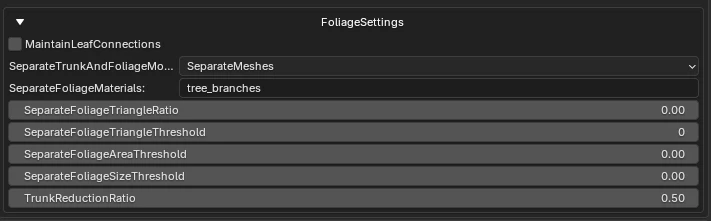
Perhaps the easiest detection setting to understand is SeparateFoliageMaterials. It was introduced in Simplygon 10.2.400.0 and lets us specify one material or a list of material names. A good use case is ensuring that no expensive transparent materials remain in the trunk asset after optimization when SeparateMeshes is used. With a bit of scripting, we can detect any materials in the scene that use transparent shaders and add their names to this list.
Let us set all other detection settings to 0 so that we split the scene based only on material.
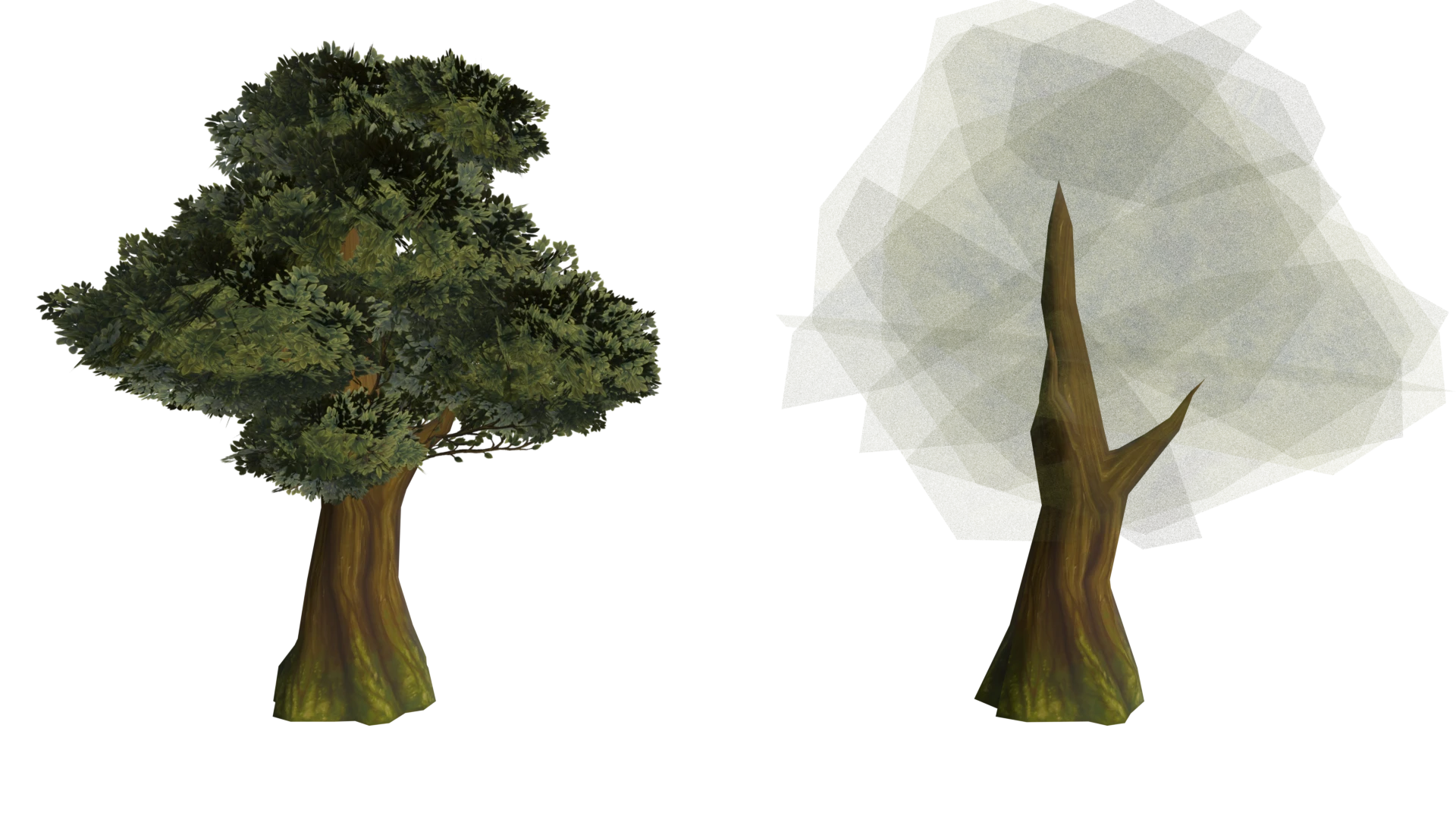
In the resulting asset, the billboards have been made transparent. We can see the trunk remaining in the middle.
By cluster triangle count threshold
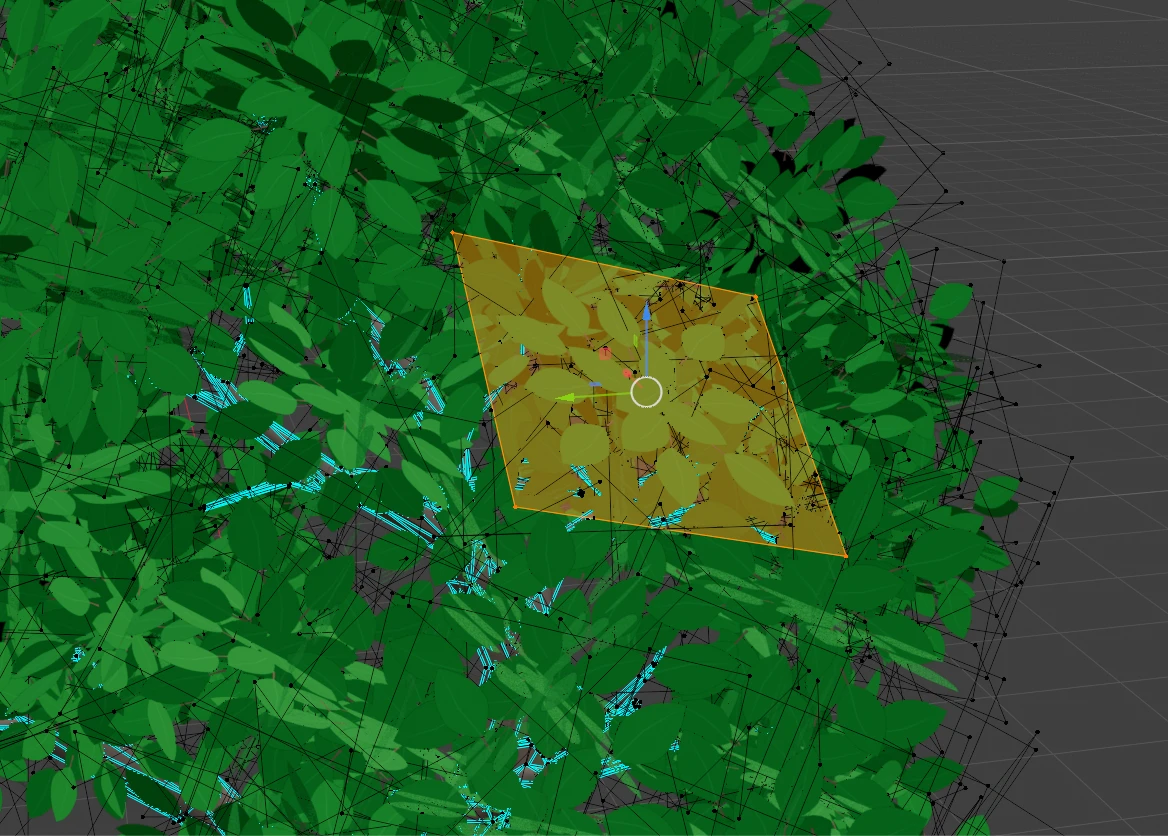
With SeparateFoliageTriangleThreshold, we can define a triangle threshold. Any connected group containing fewer triangles than this number is considered foliage.
A good example is this asset, where all the leaves are quads consisting of two triangles. This means that we can detect foliage by setting the triangle threshold to 3. It is often a good idea to leave some wiggle room in case we accidentally create a card containing more triangles than a simple quad. Internally, we perform welding before running the detection. This can also cause cards to be merged.
By cluster triangle ratio
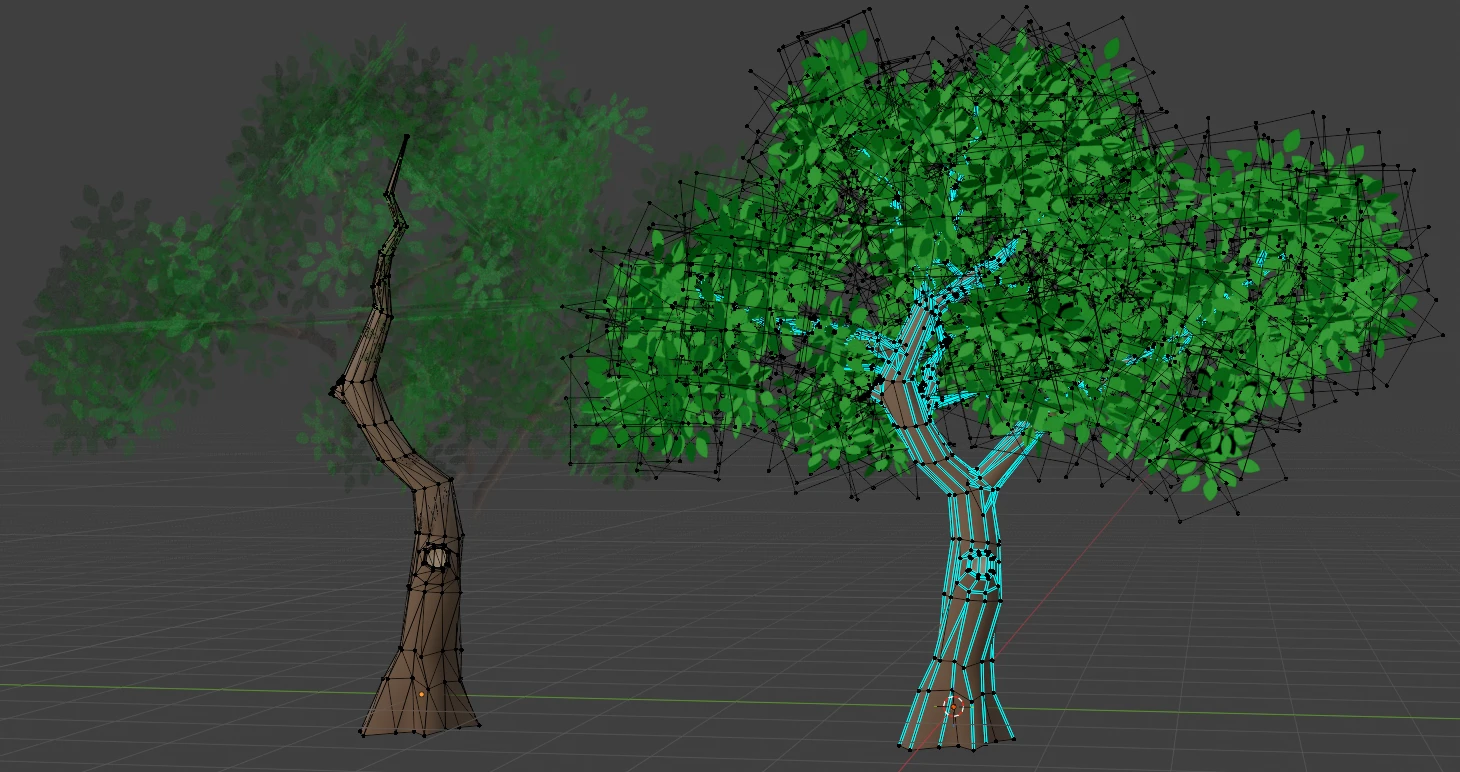
SeparateFoliageTriangleRatio is another way to identify foliage based on the number of triangles in a connected group. The idea is that the largest connected group of triangles in a vegetation asset will be the trunk. The ratio is normalized against the largest connected triangle group in the scene.
Let us set SeparateFoliageTriangleRatio to 0.99 while setting the remaining values to 0. This means that only one group will be larger than this ratio: the largest group itself. In the image below, we can see some branches that are disconnected from the main trunk. These are now considered foliage and therefore become part of our billboards. It is often a good idea to let thin branches become part of the billboards, but this result is perhaps a bit too aggressive.
By cluster size
The two settings above are based on mesh topology and the assumption that the trunk is geometrically more complex than the foliage. Let us take another approach based on the assumption that the foliage is smaller than the trunk, which holds true for most trees. As above, we evaluate each connected triangle group. With SeparateFoliageSizeThreshold, the threshold is scaled by the scene diameter. If a triangle cluster is smaller than this threshold, it is considered foliage.
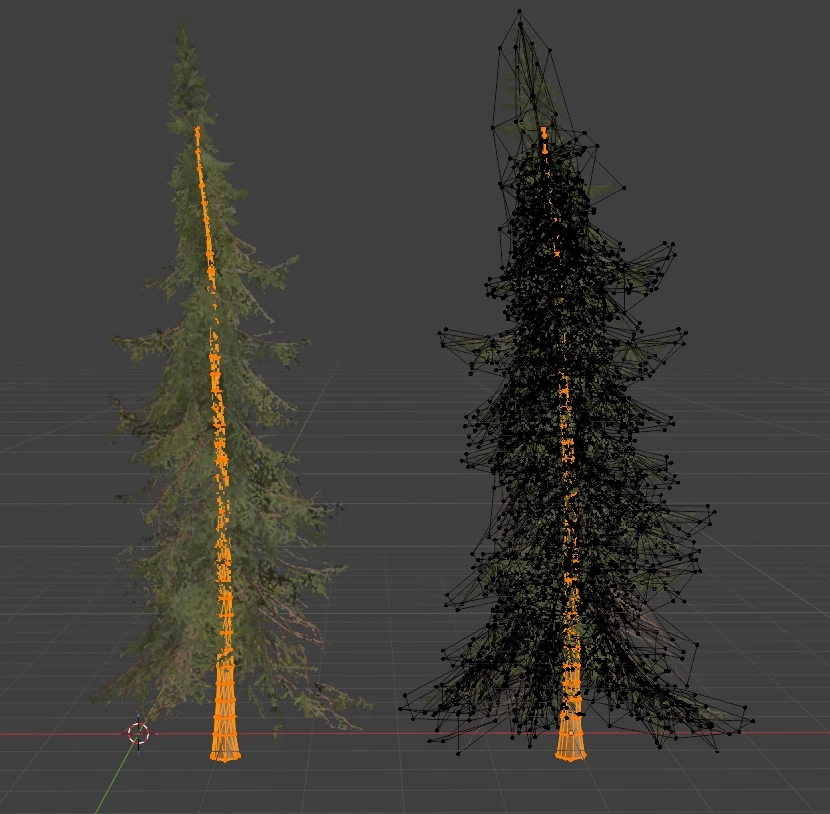
Let us look at an example. For this pine tree, we set SeparateFoliageSizeThreshold to 0.70 and the remaining thresholds to 0. The trunk, which covers almost the entire height of the scene, is correctly detected.
By cluster area
The final method is detection by area. With SeparateFoliageAreaThreshold, the idea is that clusters with large areas are part of the trunk.
This is similar to the cluster size method above, but there is a small difference. Trees can have many very thin branches that we ideally want to include in our billboards. If we based our selection only on cluster size, these branches could be difficult to classify because their triangle cluster can have a large bounding sphere diameter. This is where area comes into play: long, thin branches have a small surface area.
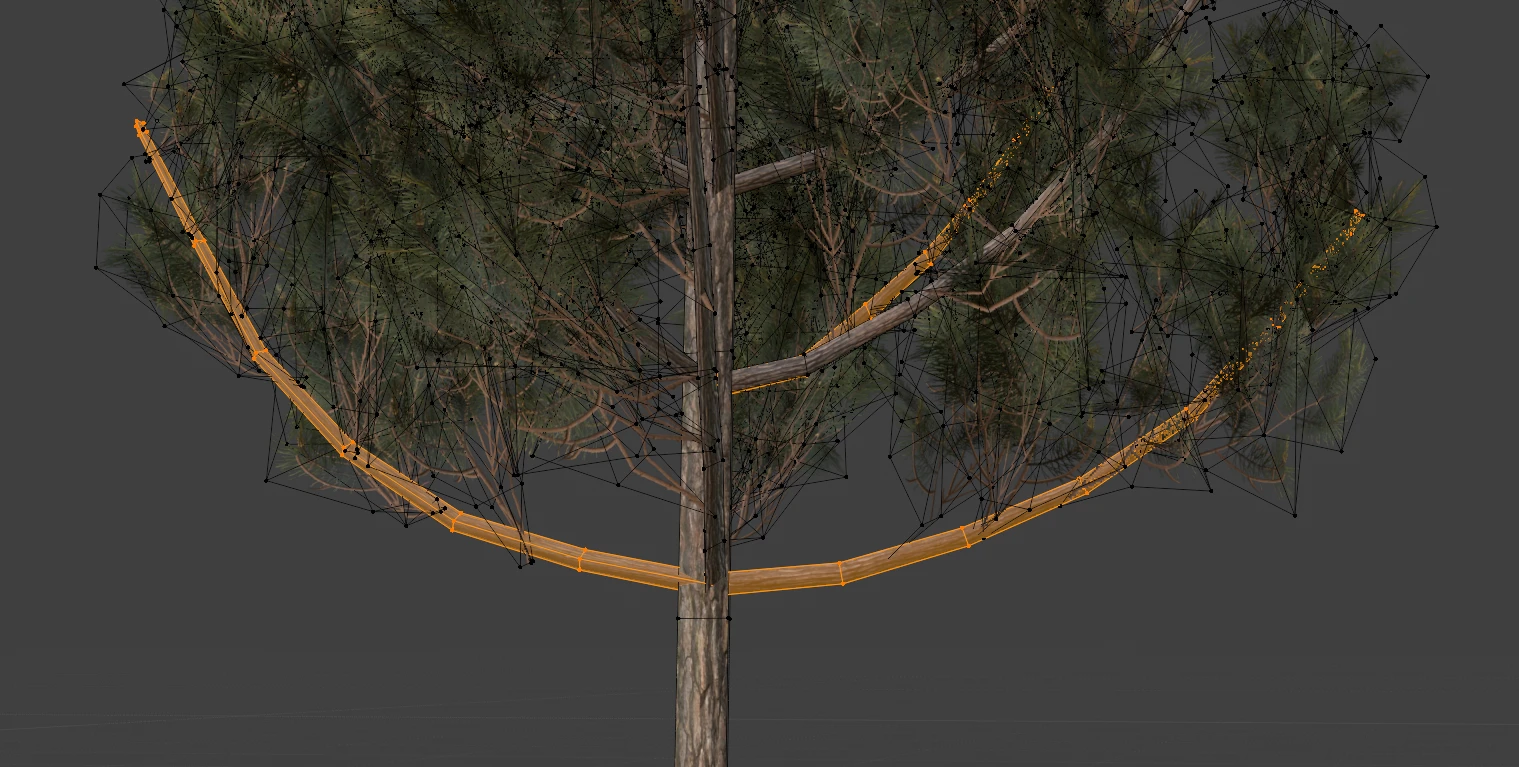
Let us set SeparateFoliageAreaThreshold to 0.99. This means that only the triangle cluster with the largest area will be considered trunk. We can see that the thin branches are considered foliage and optimized into billboards.
Optimizing tree trunks
Once we have determined which parts of the tree are considered trunk, we can decide how to optimize them. The optimization mode is selected through SeparateTrunkAndFoliageMode.
Do Not Separate
With DoNotSeparate, we do not treat parts differently based on whether they are considered trunk. This is the default behavior if trunk detection is configured incorrectly, causing the trunk to remain undetected and everything to be considered foliage.
This mode can be useful for assets that do not have a central trunk, such as bushes or patches of grass. Here, we use it in combination with MaxPlaneCount set to 3. The primary goal here is not necessarily to reduce the triangle count, but to reduce overdraw. The original asset has many transparent cards stacked on top of one another. Our optimized asset has a maximum of three cards facing different directions.


| Asset | Triangle count | Materials |
|---|---|---|
| Original | 62 | 1 |
| Billboard with mode DoNotSeparate | 18 | 1 |
Favor Trunk Planes
This mode was introduced in Simplygon 10.4.446.0. FavorTrunkPlanes replaces the entire model with billboards and favors planes that better preserve the trunk. This will often give higher visual quality, as the trunk is more structured geometry where it is easier to detect differences. Here we are using a BillboardDensity of 0.05. This gives us a larger projection distance per plane. Having a large projection distance allows the trunk to be part of few planes, resulting in a more coherent structure.
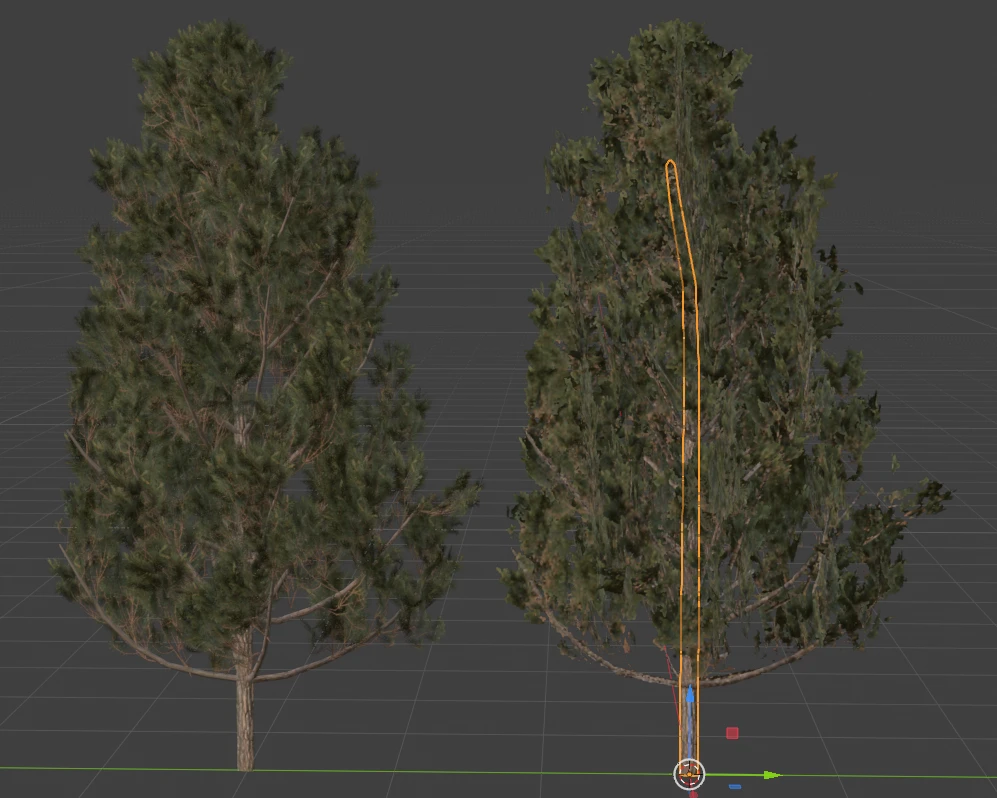
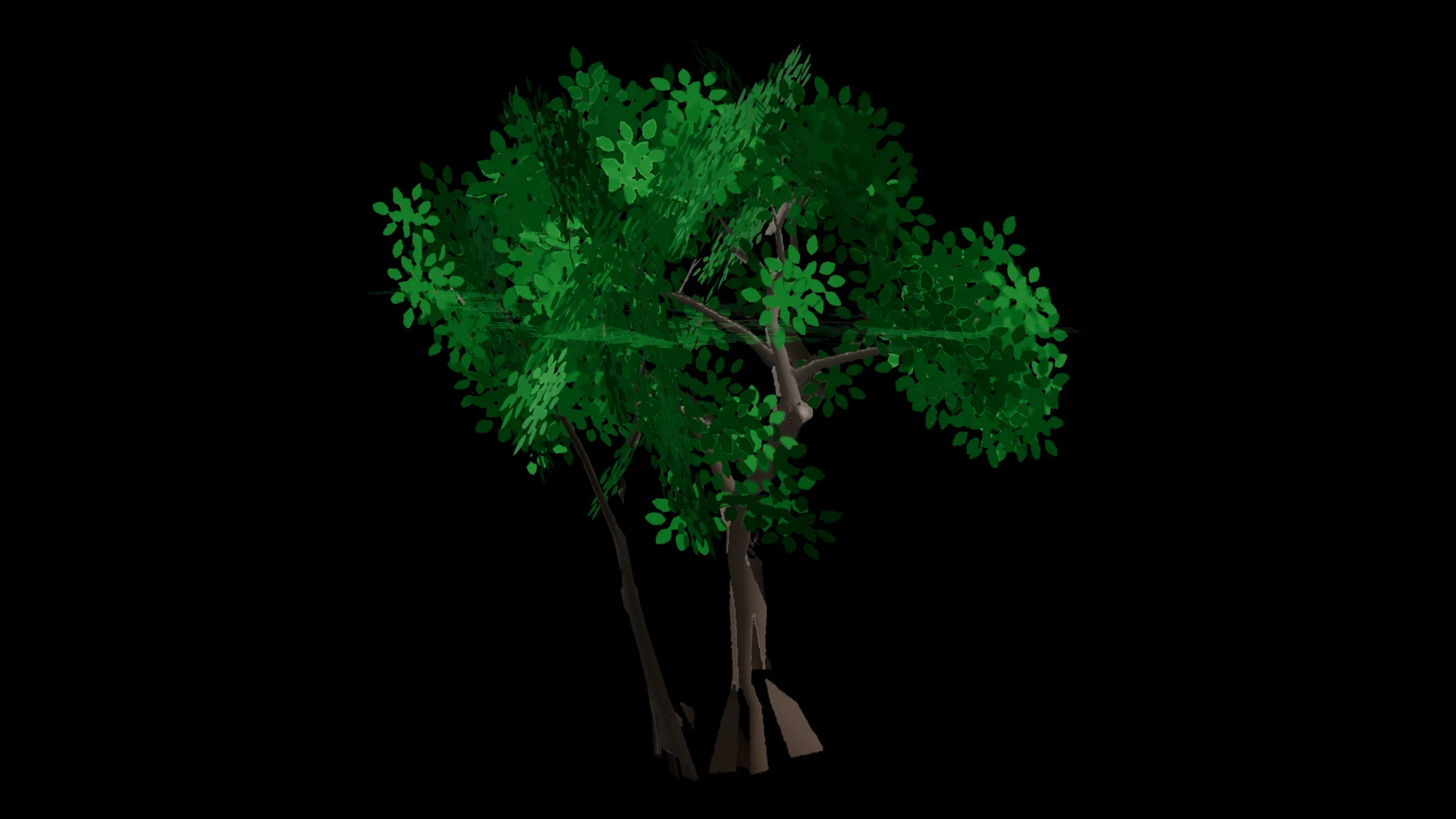
Let us compare a tree optimized with FavorTrunkPlanes to one optimized without it. Without FavorTrunkPlanes, we can see that parts of the trunk are projected onto a plane that does not align well with the rest of the trunk. That plane is influenced mostly by the foliage.
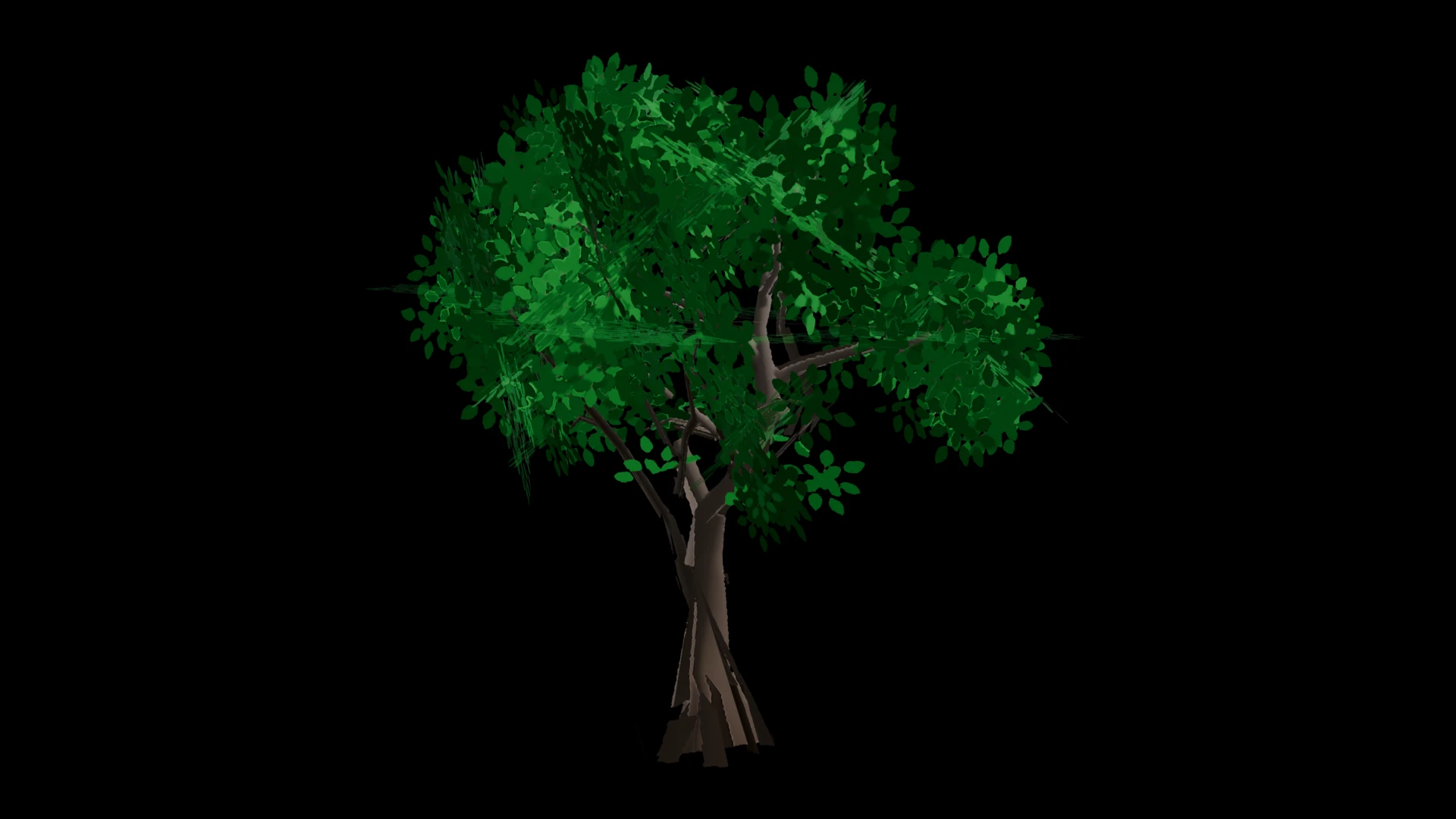
Compare that result to how the tree looks when we favor trunk planes. The trunk now looks more coherent.
| Asset | Triangle count | Materials |
|---|---|---|
| Original | 2 k | 2: Trunk and branch material |
| Billboard with mode DoNotSeparate | 58 | 1 |
| Billboard with mode FavorTrunkPlanes | 65 | 2 |
Separate Meshes
If a tree has a trunk with a large diameter or a very complex shape, capturing its shape with billboards can be difficult. FavorTrunkPlanes helps to some degree, but it cannot capture the shape completely.
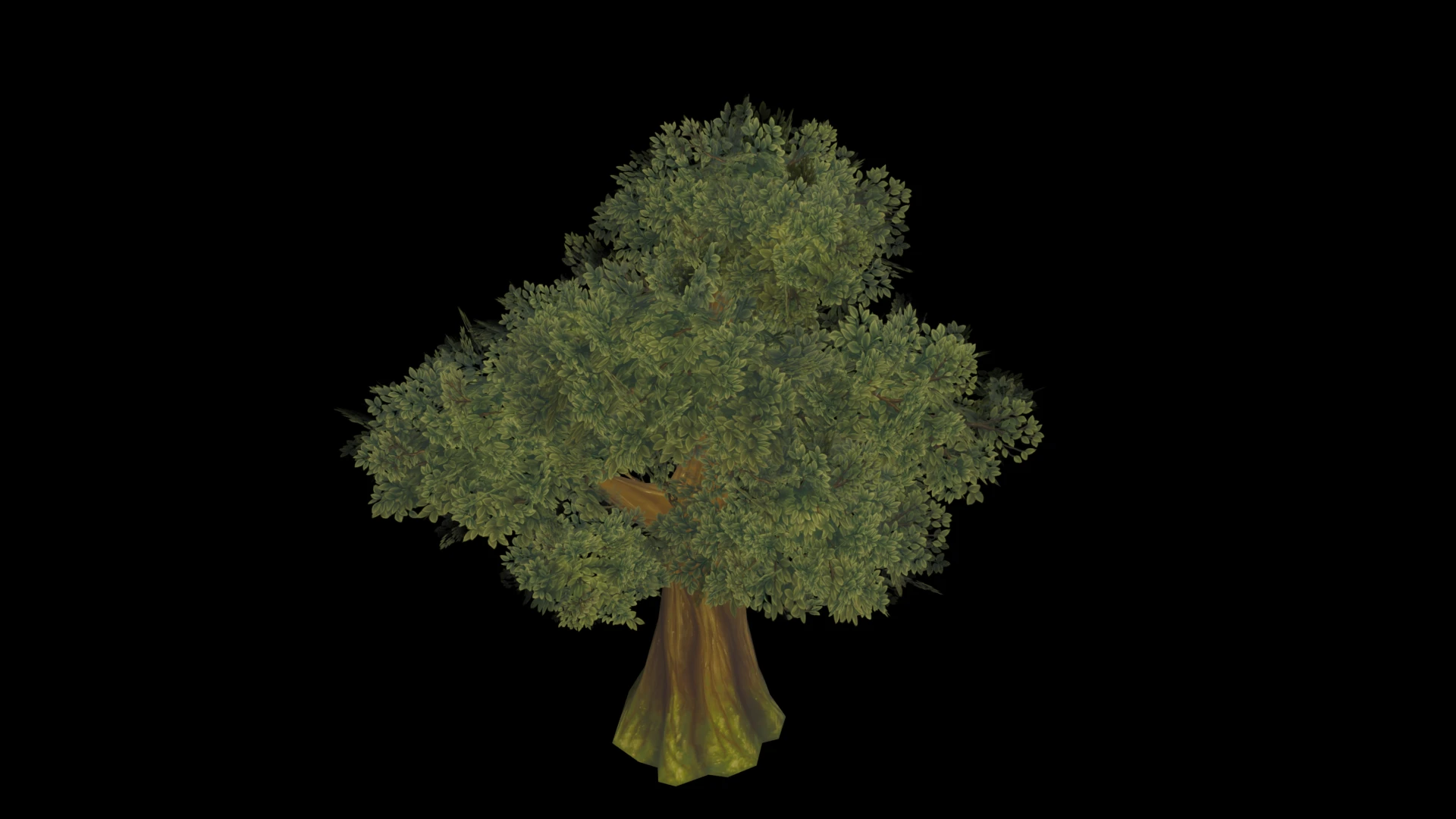
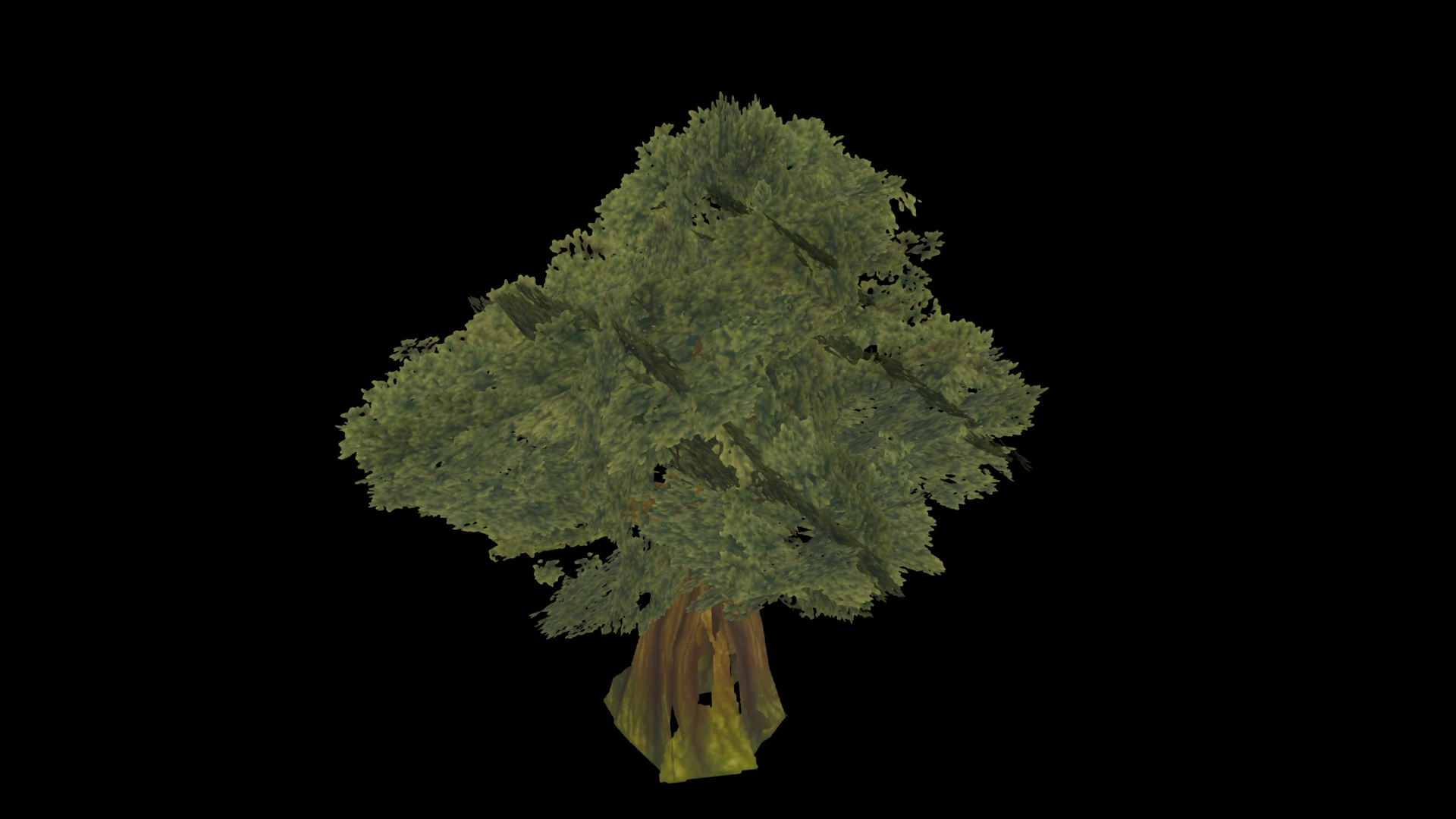
This is where SeparateMeshes comes into play. In this mode, we run the trunk through the triangle reducer instead of making it part of the billboard cloud. This comes at the cost of using more materials because we now need to render both the original trunk material and the new billboard material.
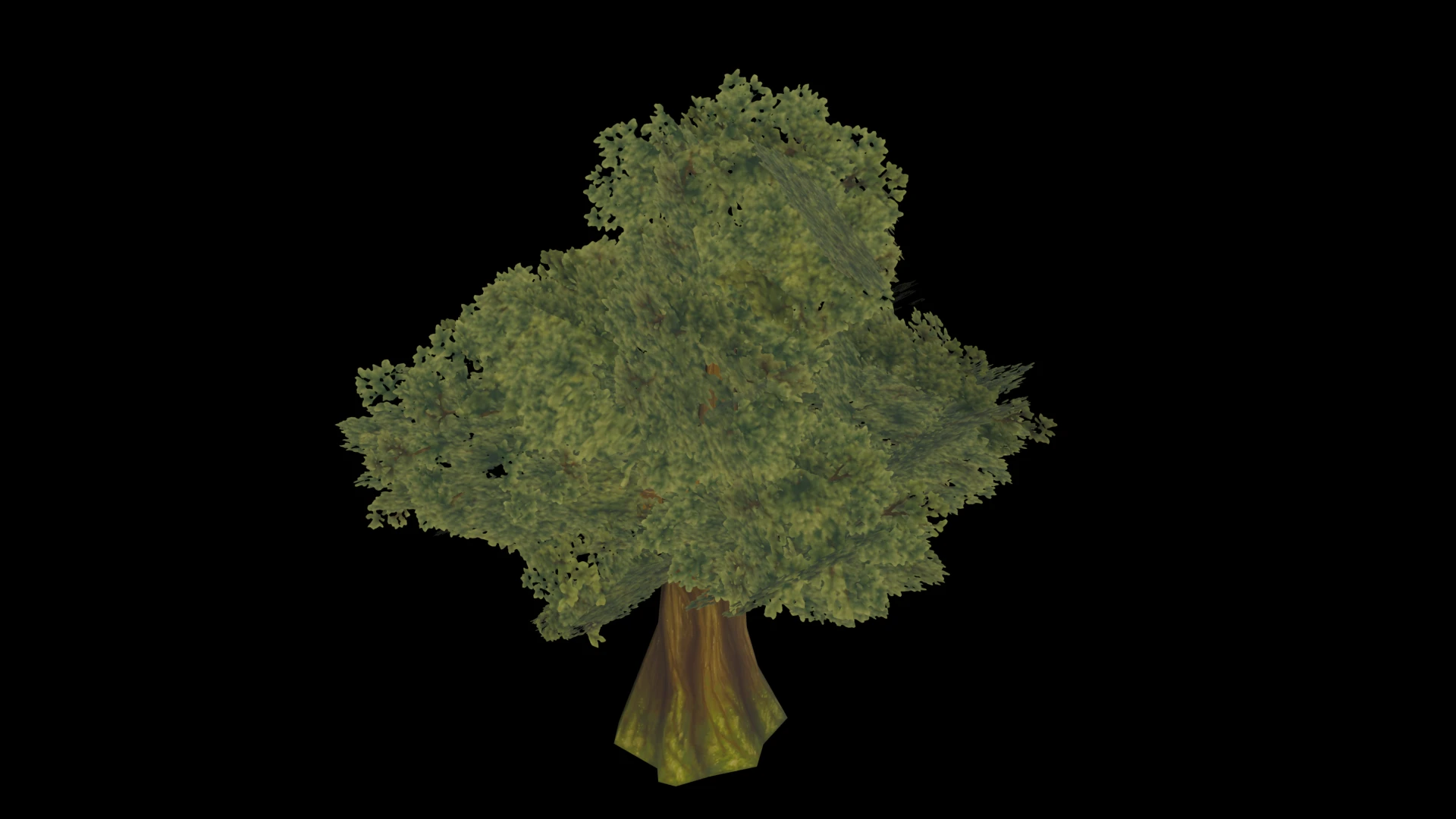
| Asset | Triangle count | Materials |
|---|---|---|
| Original | 5 k | 2: Trunk and branch material |
| Billboard with mode FavorTrunkPlanes | 100 | 1: New billboard material |
| Billboard with mode SeparateMeshes | 265 | 2: New billboard material and old trunk material |
How to build a vegetation optimization pipeline
If you are building a vegetation optimization pipeline, what are the recommended steps?
- First, find a representative set of vegetation assets. Consider dividing them into categories based on vegetation size and trunk thickness or complexity.
- Set SeparateTrunkAndFoliageMode to SeparateMeshes. This makes it easy to see what is considered trunk and foliage. Determine which combination of trunk detection settings works for each asset category.
- Once the trunk is detected correctly, decide how to handle it by configuring SeparateTrunkAndFoliageMode. FavorTrunkPlanes will produce good results for most assets, but SeparateMeshes will produce better results for assets with complex or very thick trunks. DoNotSeparate can be used for assets without a clear trunk.
- Once we know how to handle the trunk, we can fine-tune the billboard settings. For more information, see the blog post How to find correct settings for Billboard Cloud: Outer shell.
The goal of this process is to find good default settings that handle most vegetation assets. We want to avoid forcing artists to fine-tune the settings for each asset. Using broad asset categories makes it easier to scale optimization and is necessary for automated 3D model optimization.
Further reading
The following blog posts provide more information about vegetation optimization:
- Rendering vegetation impostors explains how to render billboards for the best visual results.
- Billboards are well suited to distant LODs. It is often possible to generate a few LODs with the triangle reducer before switching to a billboard proxy. This approach is detailed in Optimizing vegetation assets with reduction and billboard pipeline.
- For an in-depth look at other foliage settings, see Impostor: Billboard cloud for vegetation.